
IMAGE GUIDES
Photo too large to upload? A practical guide to image compression
A form rejects your photo. An email attachment is heavier than expected. A product image takes too long to share. The goal is usually the same: make a useful copy that fits the destination while keeping the details someone needs to see.
Start with Image Compressor when an attachment needs a smaller file.
Start with the receiving site’s requirements
Before changing anything, read the upload instructions. A file-size limit controls the number of bytes. A dimension requirement controls width and height in pixels. A format restriction decides whether the site accepts JPG, PNG or WebP. Meeting one requirement does not automatically meet the others.
This matters for students submitting forms, sellers preparing product photos and anyone sending images by email. Keep the original in a separate folder, then work on a copy. If the destination specifies exact dimensions, prepare those first rather than shrinking quality until the picture becomes difficult to read.
Choose an image the compressor supports
Klyvero Tools Image Compressor accepts JPG, PNG and WebP and keeps the input format. You can process up to 20 images together, subject to the batch limit shown on your device. The live interface currently shows 50 MiB on mobile and 200 MiB on desktop. Large images can still be demanding on browser memory.
For photographs, JPG or WebP can be practical choices. For screenshots, logos and diagrams, inspect fine edges and transparency carefully. If the destination requires a different format, use Image Converter separately; compression here does not switch a PNG into a JPG. Animated input is flattened when re-encoded, so use still images for this workflow.
Compress a batch, step by step
- Open Image Compressor and choose your JPG, PNG or WebP files. If you want to explore first, use “Try a sample image” before selecting your own pictures.
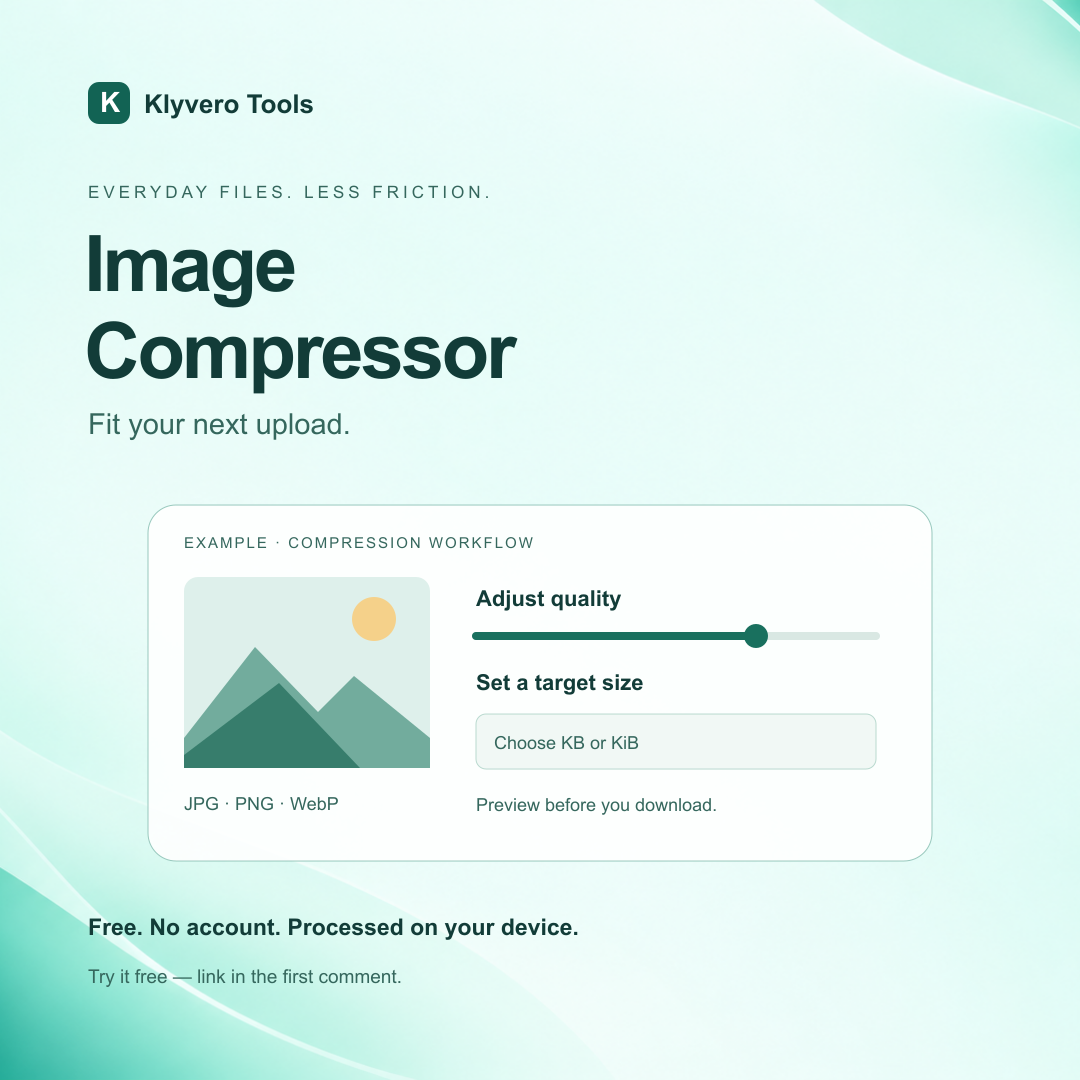
- Start with the quality setting and compare the result. The slider is an encoder setting, not a promise that the same percentage of visual detail will remain. You can adjust it after loading your files.
- For a strict upload limit, expand “Advanced · target file size,” enter your target and choose its unit. Use decimal KB when the destination’s limit is expressed in thousands of bytes.
- Decide whether to allow smaller dimensions. Target mode searches for a suitable quality and can reduce pixel dimensions when that option is enabled. Disable it if the original dimensions must stay fixed.
- Review the output size, target status and final width and height. Open the comparison preview and inspect text, faces, gradients and edges before downloading an individual result or a ZIP for a batch.
Changes to settings recompress from the original image rather than repeatedly compressing the previous result. That makes it easier to compare alternatives, but you should still save the untouched original for later edits.
Example: preparing a photo for a 100 KB form
Suppose an application portal accepts a JPG no larger than 100,000 bytes. Open the advanced settings, enter 100 and select KB. The default KiB unit uses 1,024 bytes per unit, so 100 KiB allows 102,400 bytes and could exceed that portal’s limit. Check the stated requirement instead of assuming the two labels mean the same thing.
If the form also demands a specific width and height, turn off smaller dimensions and inspect the output. If the result says “Over target,” it does not satisfy the limit. You may need a different source image or an allowed dimension change. If the original already fits the target, the tool can return it unchanged. This is a workflow example, not a promised compression result.
Choose a smaller file you can still use
The smallest possible file is not always the most useful one. For a receipt, zoom in on the total and date. For a product photo, look at texture and color. For a screenshot, inspect small text. Compare at a useful viewing size and reject an output that loses information the recipient needs.
PNG deserves particular care: quality 100 preserves decoded pixel colors, while lower settings optimize the color palette and can change colors or introduce banding. JPG and this tool’s WebP output use lossy encoding. No setting can guarantee a particular saving or perfect visual fidelity for every picture.
Check metadata and save the right copy
Re-encoding removes EXIF metadata, which may include camera and location information. An original returned unchanged retains its metadata. Do not assume every download has had location information removed; the result notes explain what happened.
Your image processing takes place in the browser without uploading the input to a processing server. Download the copy, check its name and actual size, and try the destination’s upload again. Keep the original until you are sure the smaller copy is accepted and looks right.
Frequently asked questions
Will the compressor always reach my target?
No. Image detail, fixed dimensions and format overhead can make a target unreachable. Check “Target met” or “Over target” and the final byte count before using the result.
Does compression always preserve the original dimensions?
Normal compression keeps dimensions. Target mode can reduce them when “Allow smaller dimensions to reach the target” is enabled. Turn it off when exact dimensions are required.
Can I compress transparent PNG images?
Yes. PNG palette optimization retains transparency, but lower quality settings can change colors. Check the preview, especially gradients, logos and fine edges.
Do I need to upload my images or create an account?
No account is required. The compressor processes your images locally in your browser; your input is not uploaded to an image-processing server.
Useful next steps
- Image Resizer: Set the pixel dimensions required by a form or layout.
- Image Converter: Prepare a different format when the destination requires it.
- Image Cropper: Adjust framing before making the final compressed copy.
Make room for your next upload.
Ready to prepare your next attachment? Open Image Compressor, choose your images and compare a smaller copy before you download.
Try Image Compressor free →